INHALTSVERZEICHNIS
Was sind Custom Values?
Wichtige Funktionen von Custom Values
So erstellst, bearbeitest und löschst du Custom Values
Praxisbeispiele / Anwendungsfälle
So organisierst du Custom Values in Ordnern
Liste der Custom Values (Merge Tags)
Was sind Custom Values?
Custom Values sind benutzerdefinierte Datenplatzhalter, die spezifische Informationen innerhalb eines Systems oder einer Anwendung speichern und verwalten. Sie ermöglichen es, personalisierte oder standardisierte Daten effizient zu organisieren und abzurufen. Diese Werte werden häufig in CRM-Systemen, CMS-Systemen, Marketing-Automation-Plattformen und ähnlichen Systemen eingesetzt.
Im Kontext von ProfitBoost speichern Custom Values personalisierte Informationen wie Kontaktdaten, Präferenzen oder eindeutige Identifikatoren. Dadurch können Nachrichten, E-Mails sowie Website- und Funnel-Seiten effizient personalisiert werden, um die Kundeninteraktion und das Engagement zu verbessern.
Wichtige Funktionen von Custom Values
Personalisierung: Custom Values speichern individuelle Informationen pro Entität (z. B. Kunde, Nutzer oder Lead), wie Namen, Kontaktdaten oder Präferenzen.
Effizienz: Einmal gespeicherte Daten können systemweit wiederverwendet werden, wodurch doppelte Eingaben vermieden werden.
Automatisierung: Custom Values können automatisch Felder befüllen, E-Mails personalisieren und Workflows steuern.
Konsistenz: Einheitliche Daten (z. B. Firmenadresse oder Supportkontakte) bleiben überall gleich.
Flexibilität: Custom Values lassen sich individuell definieren und an verschiedene Anforderungen anpassen.
Updates: Änderungen am zentralen Wert wirken sich automatisch überall aus.
Datenintegrität: Reduziert Fehler durch zentrale Datenhaltung.
Segmentierung & Filterung: Ermöglicht Zielgruppenbildung und datenbasierte Auswertungen.
Zentrale Verwaltung: Custom Values können zentral erstellt, bearbeitet und gelöscht werden.
Integration: Können mit externen Systemen oder APIs verbunden werden.
So erstellst, bearbeitest und löschst du Custom Values
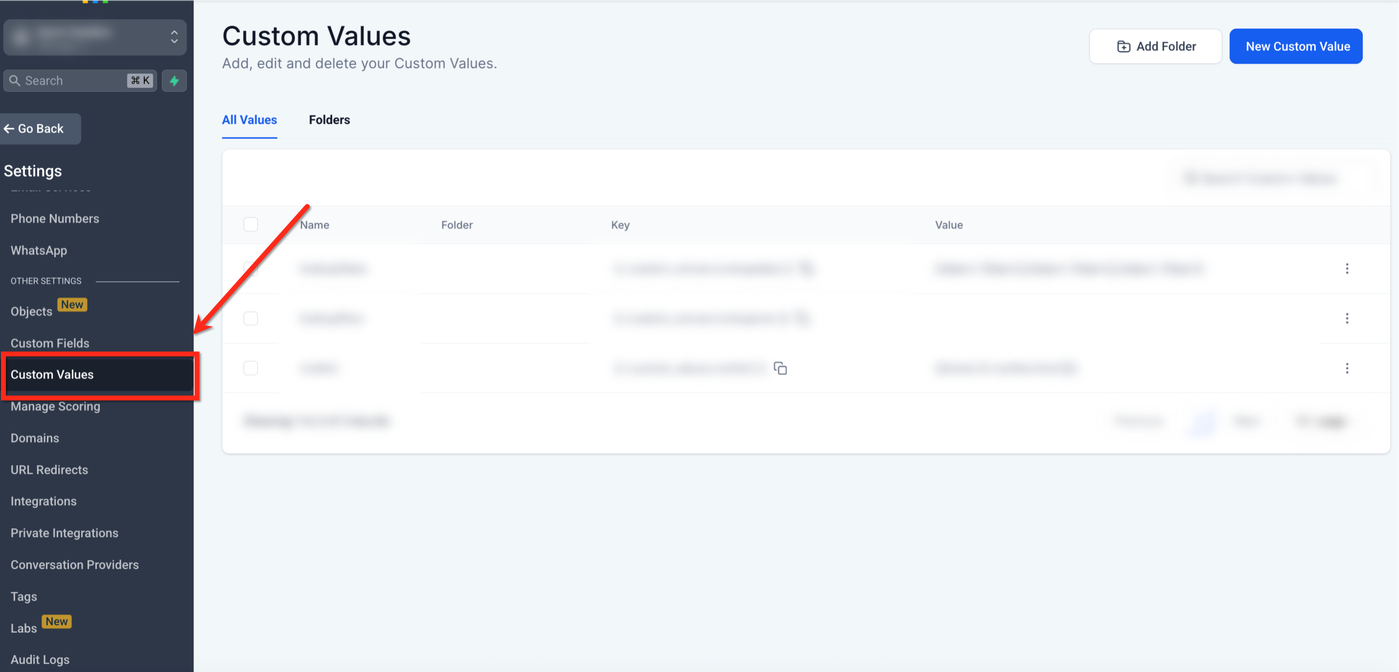
Navigation zum Custom Values Menü
Gehe im Sub-Account Dashboard zu Settings.
Wähle Custom Values aus dem Menü.
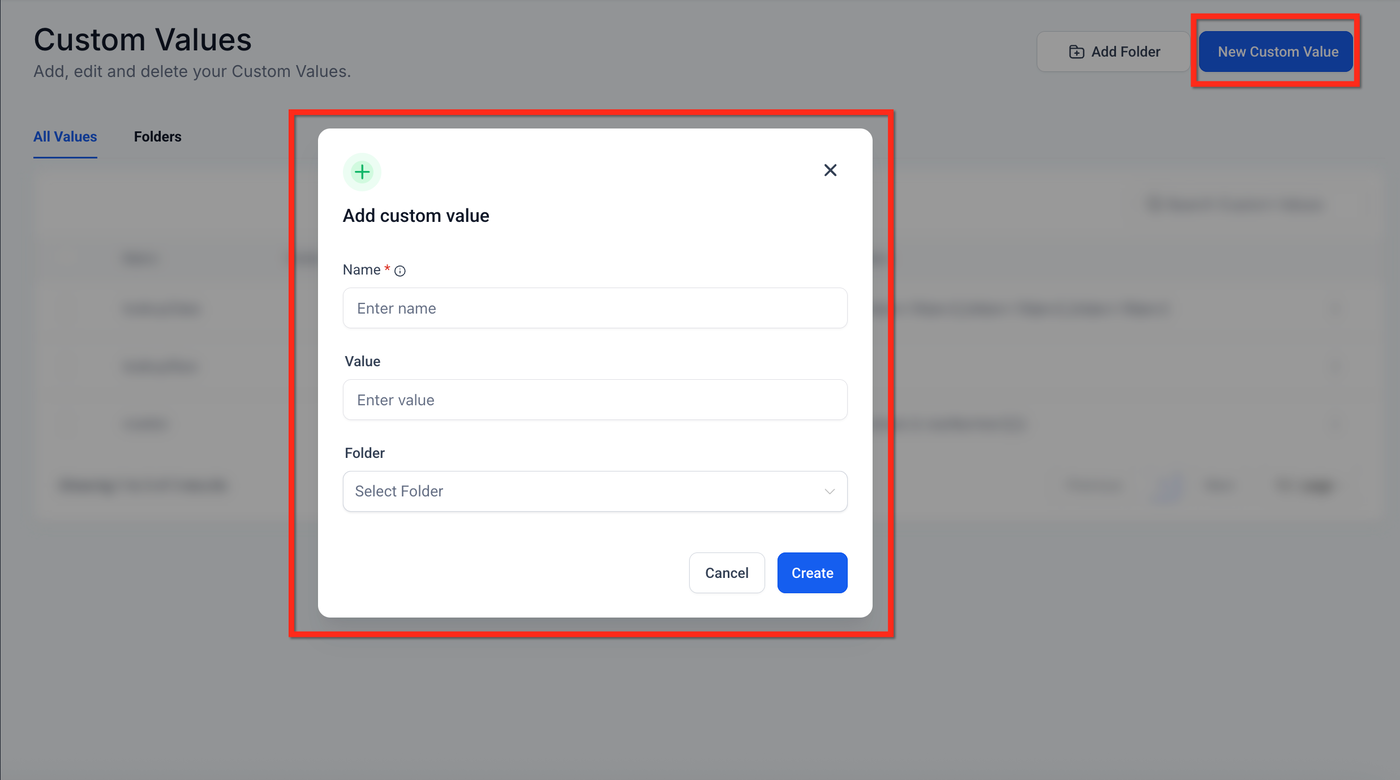
Neuen Custom Value erstellen
Klicke auf + Add Custom Value.
Gib einen Namen und den gewünschten Wert ein und wähle einen Ordner.
Klicke auf Save.
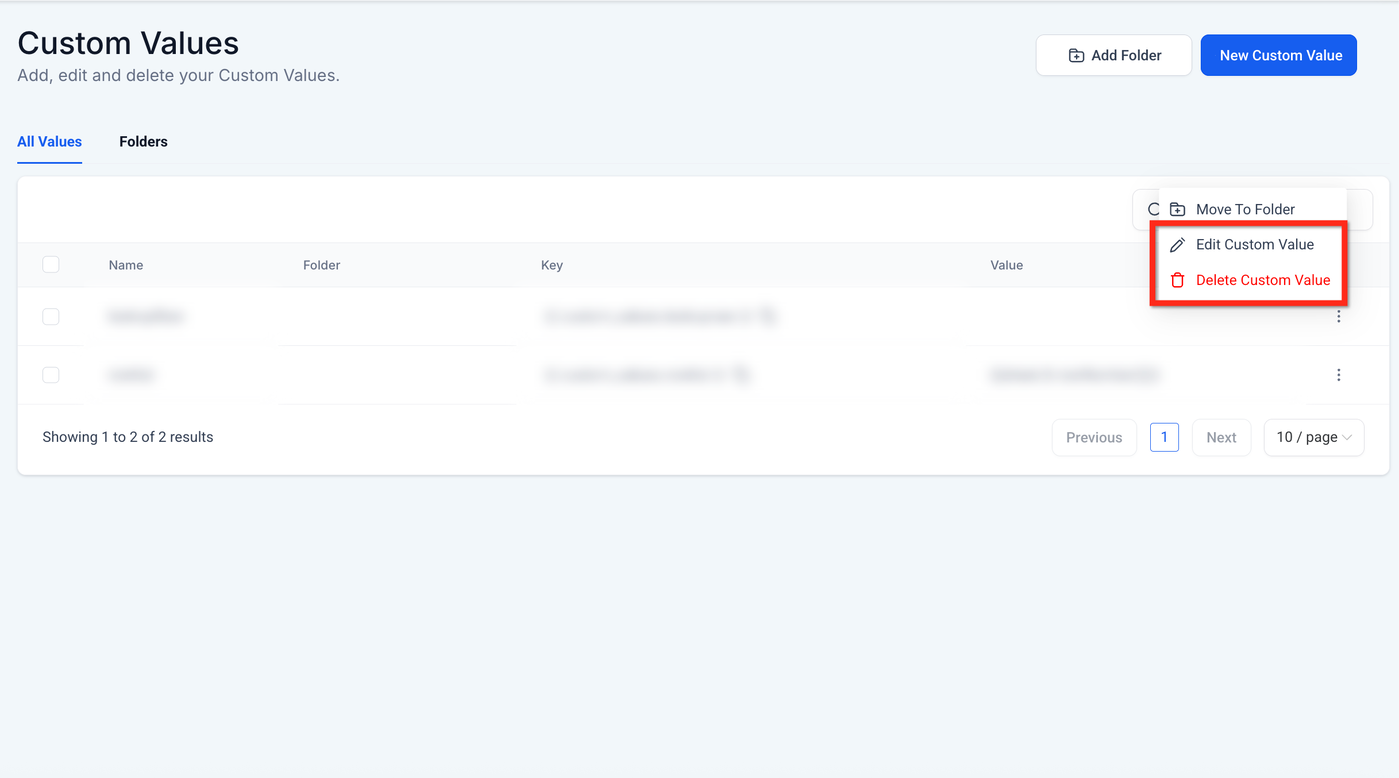
Bearbeiten oder Löschen
Finde den gewünschten Custom Value in der Liste.
Klicke auf das Drei-Punkte-Menü (⋮).
Wähle Edit Custom Value oder Delete Custom Value.
Praxisbeispiele / Anwendungsfälle
Beispiel 1
Für eine Fitnessclub-Kampagne werden Daten wie Name, Trainingspräferenz, Mitgliedsstatus und letztes Besuchsdatum gespeichert.
Damit kannst du:
E-Mails personalisieren
Nachrichten gezielt ausspielen
Webseiten dynamisch anpassen
Beispiel 2: Re-Engagement-Kampagne
Datenbeispiele:
John: Yoga, Gold-Mitglied, letzter Besuch 01.06.2024
Sarah: Cardio, Silber-Mitglied, letzter Besuch 25.05.2024
Nutzung:
Personalisierte E-Mails
Zielgerichtete SMS
Dynamische Inhalte auf Webseiten
Ergebnis: höhere Relevanz und bessere Conversion.
So verwendest du Custom Values in Sub-Accounts
Custom Values können in vielen Bereichen eingesetzt werden:
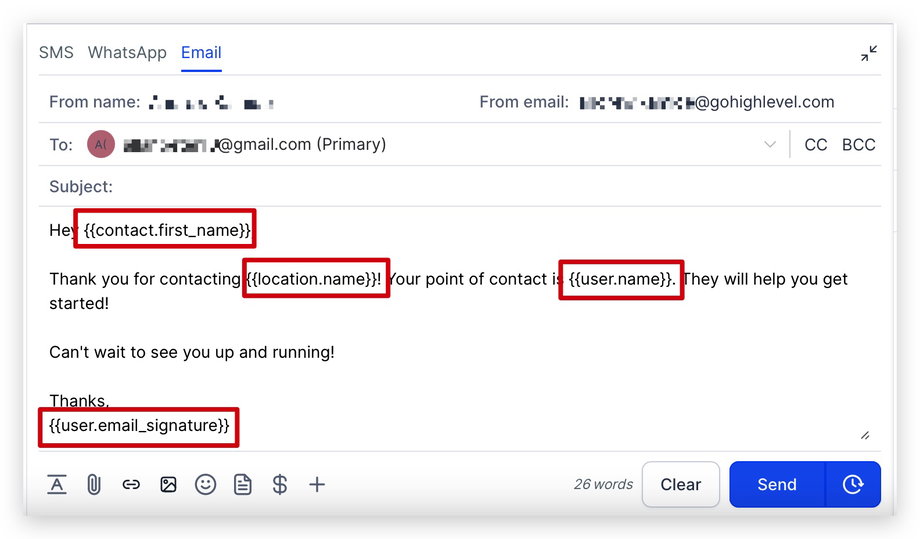
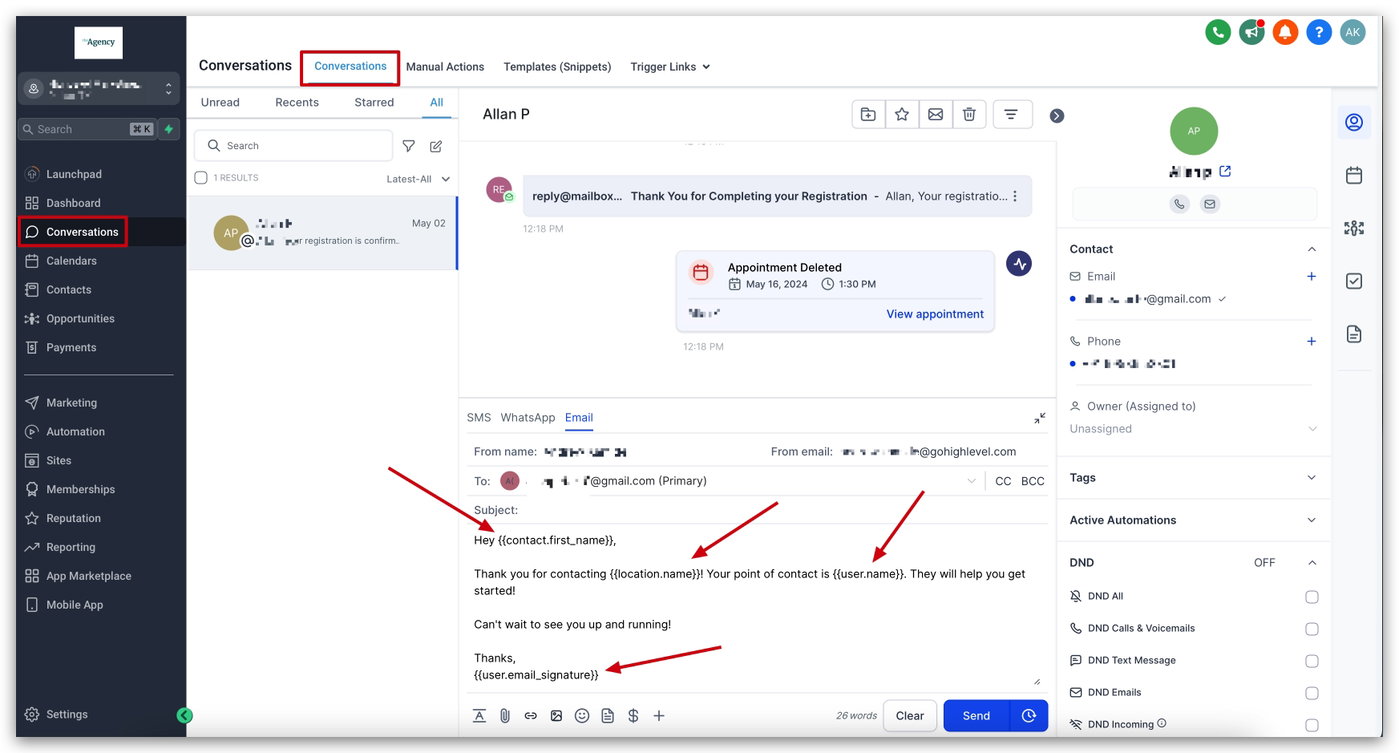
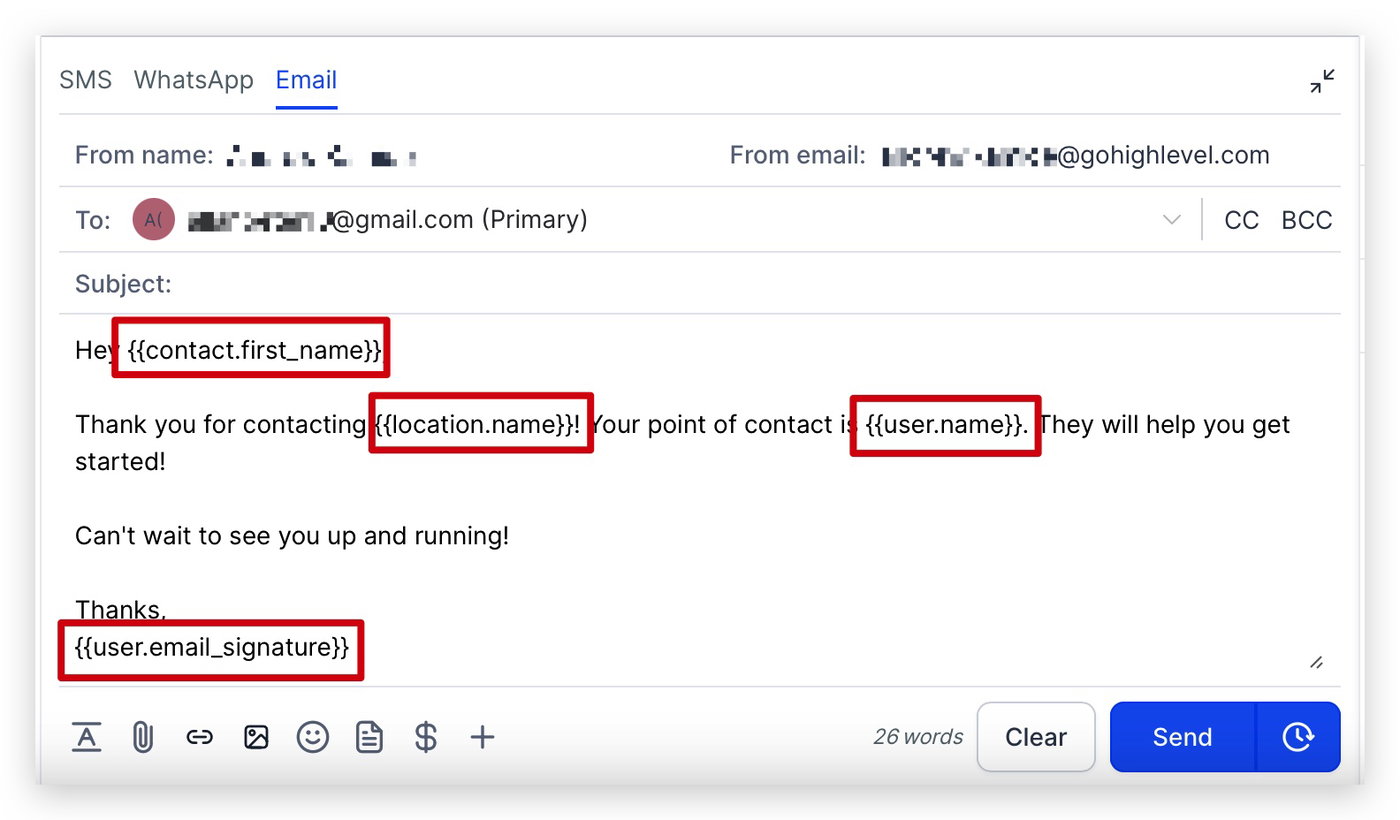
1. Conversations
Custom Values können in allen Kommunikationskanälen verwendet werden, z. B.:
SMS
E-Mail
Facebook Messenger
Instagram Messaging
WhatsApp
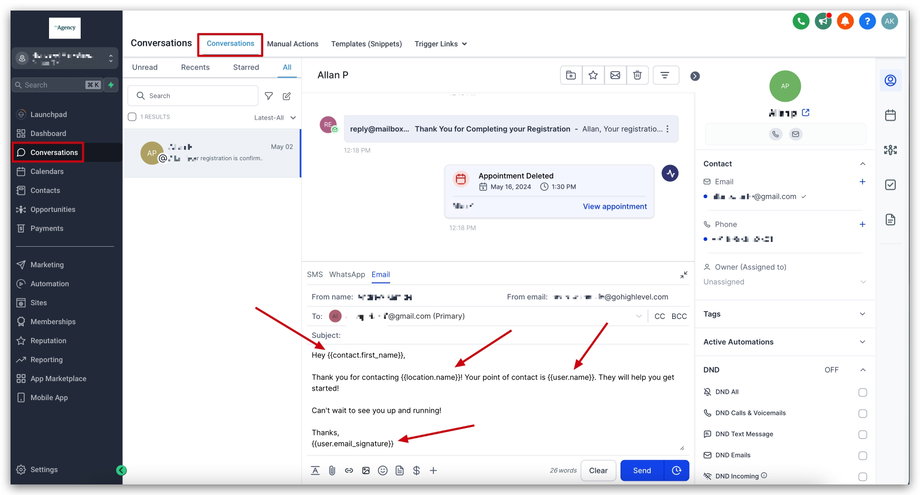
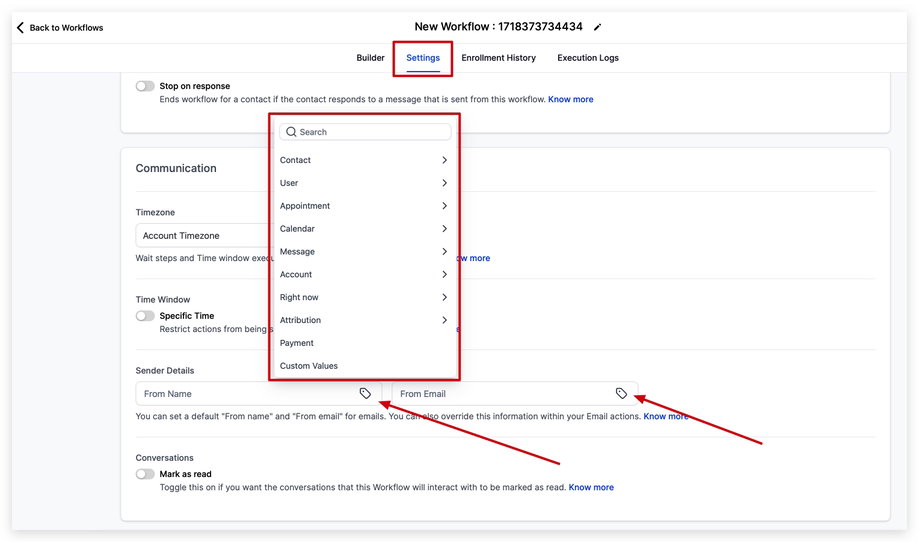
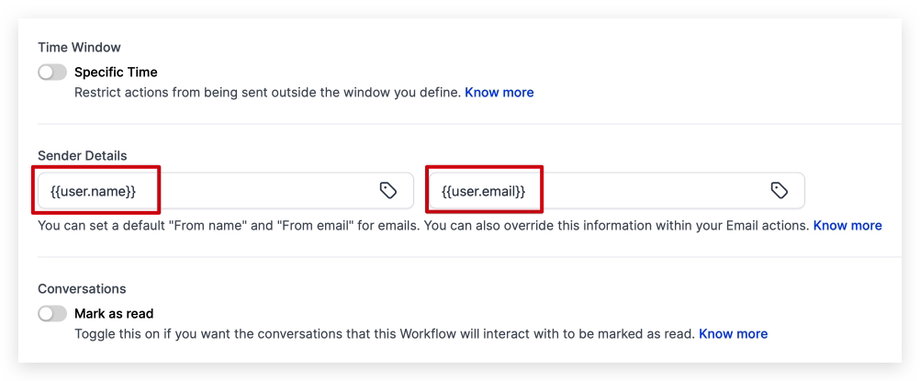
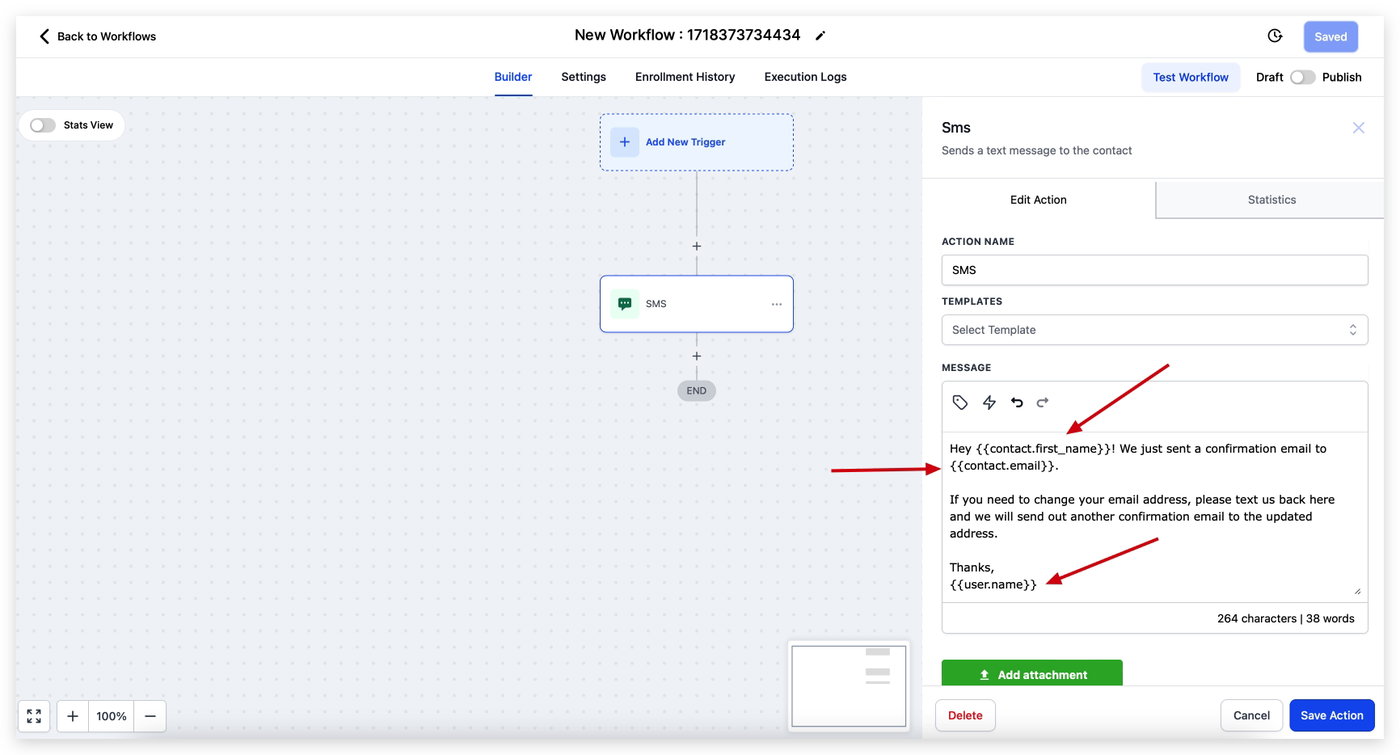
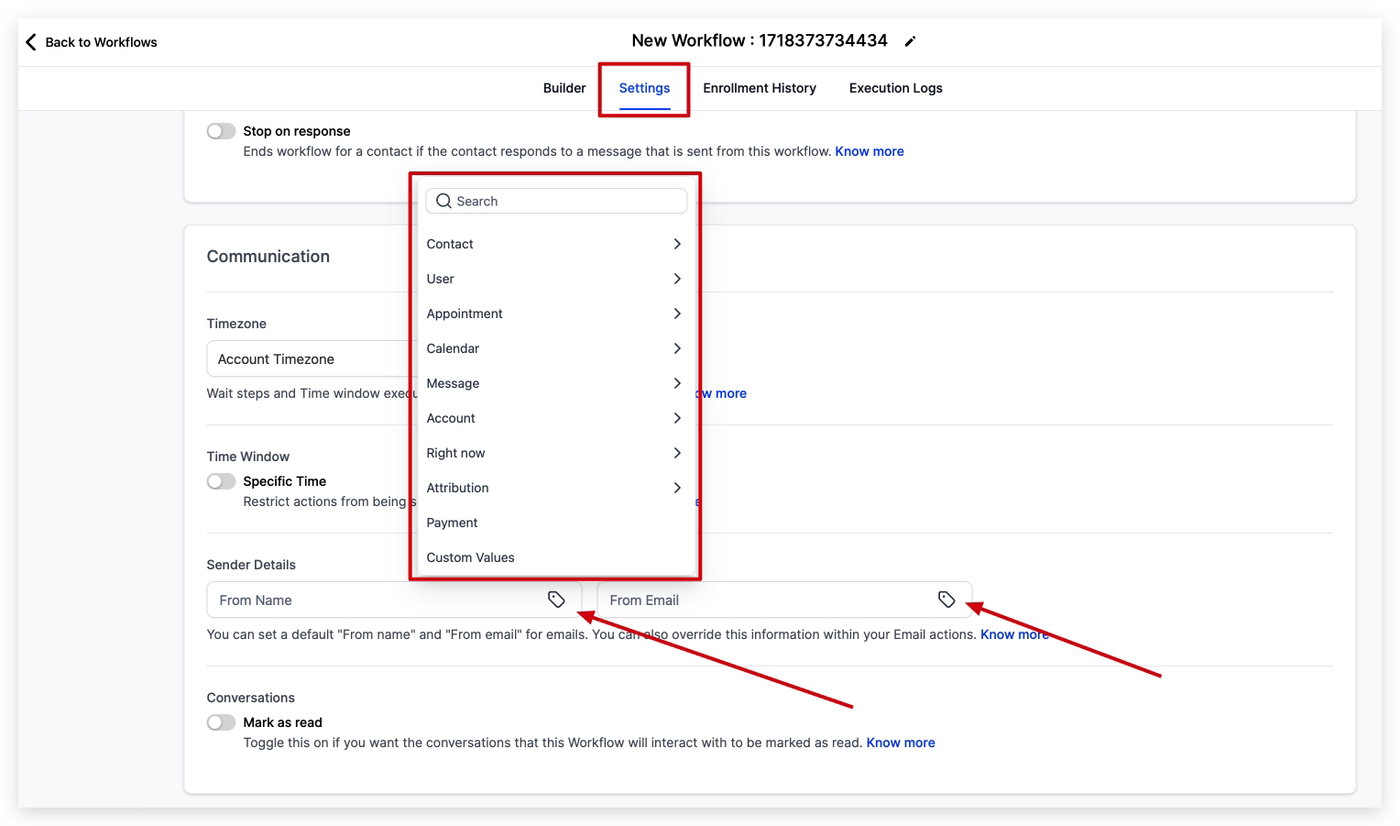
2. Automationen (Workflows)
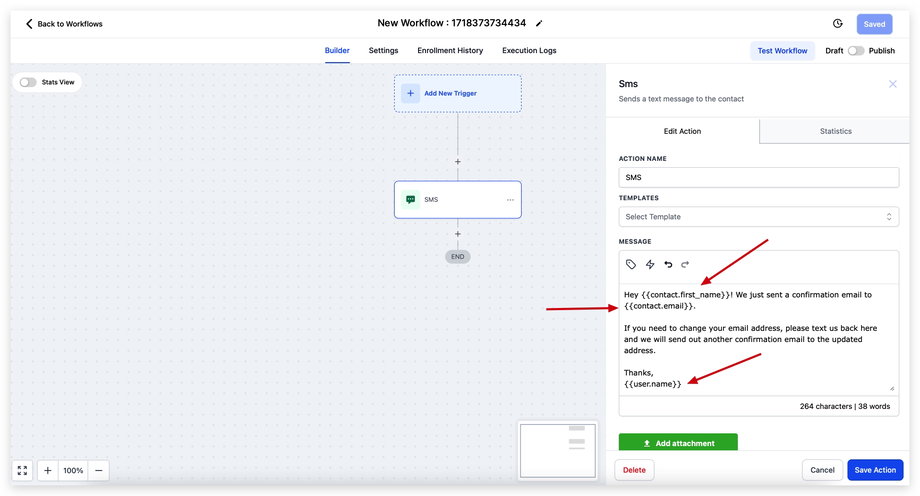
In Workflows können Custom Values genutzt werden für:
Personalisierte Nachrichten
Dynamische Felder
Automatisierte Prozesse
Trigger-basierte Inhalte
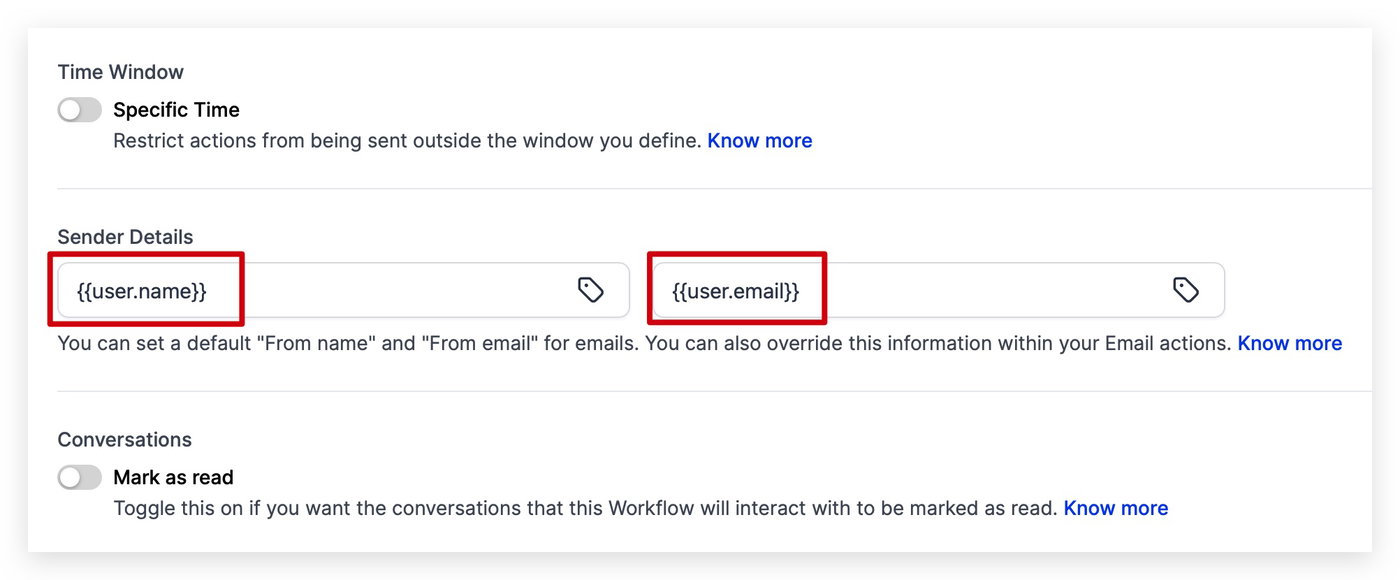
3. Websites & Funnels
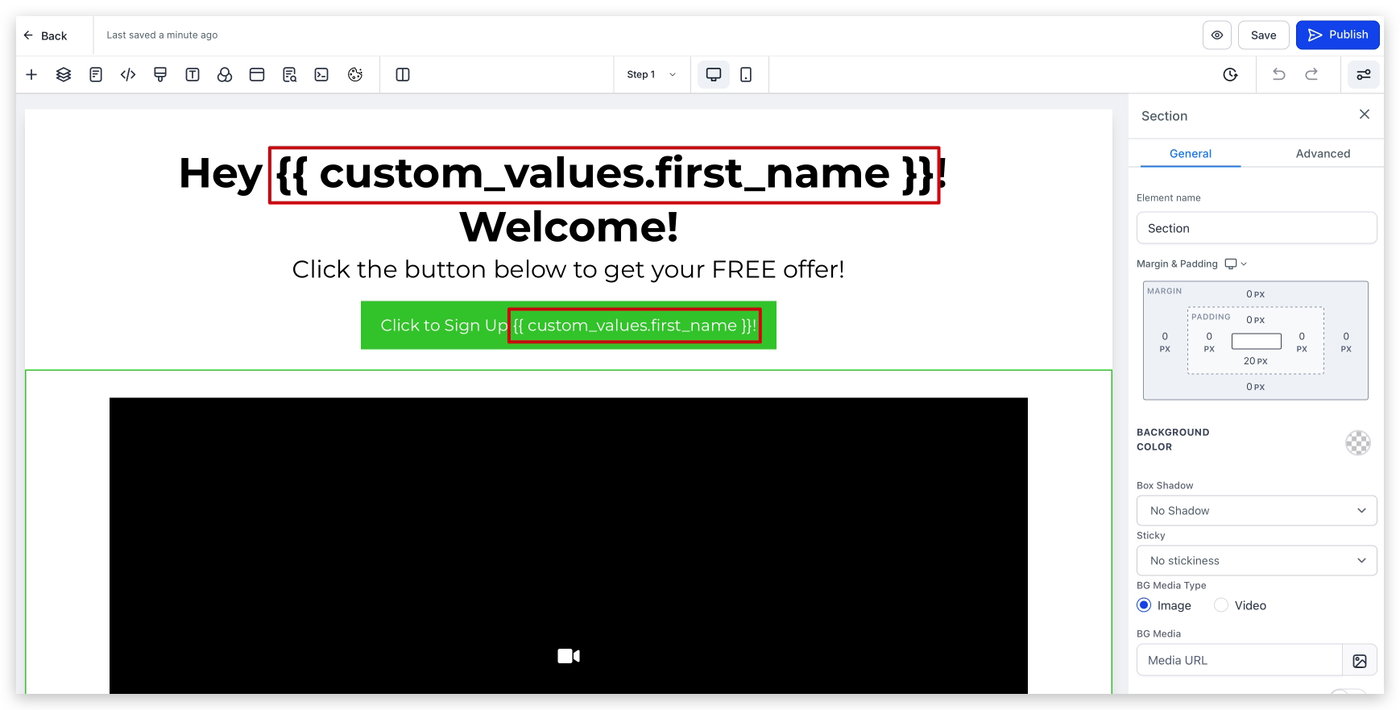
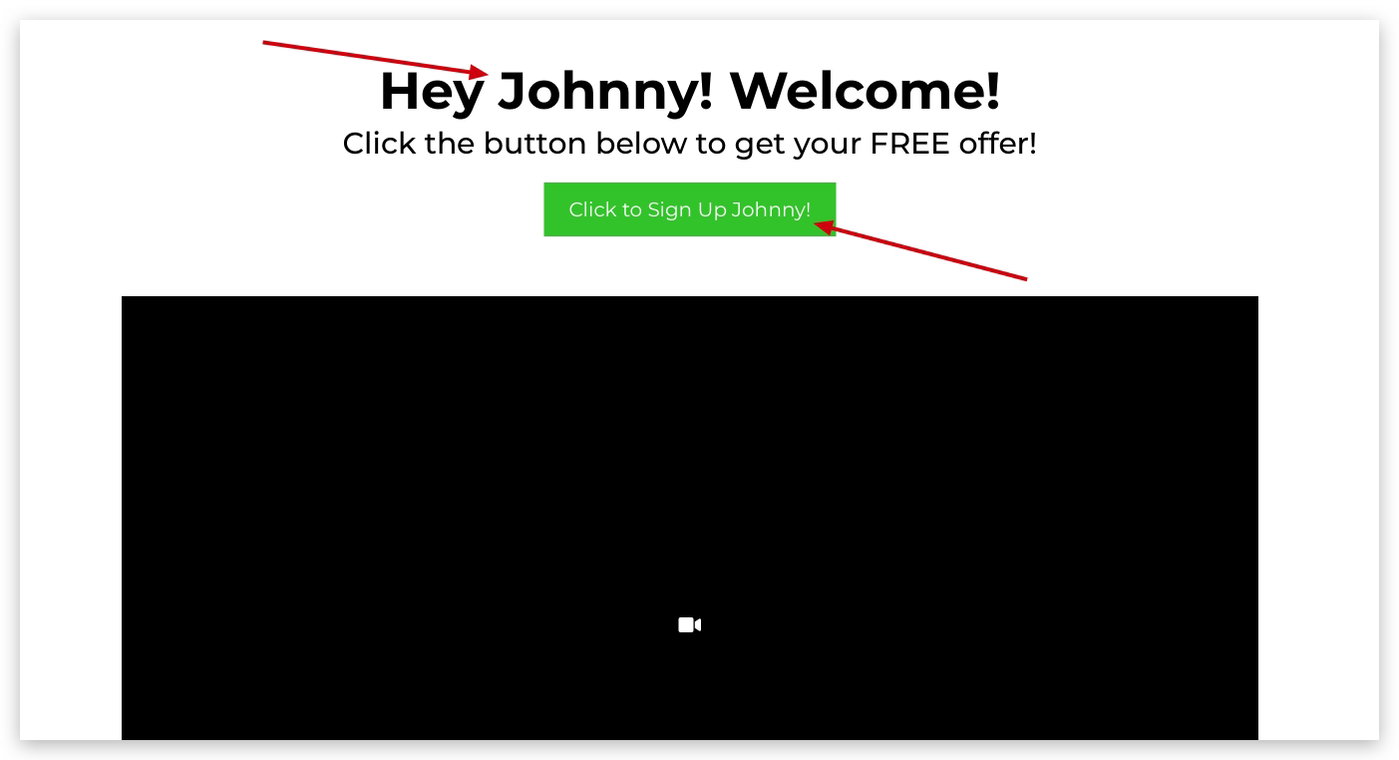
Custom Values können direkt in Websites und Funnels verwendet werden, um Inhalte zu personalisieren.
Voraussetzung: Der Kontakt muss zuvor Daten gespeichert haben (z. B. durch ein Formular oder eine Terminbuchung).
Zusätzlich können Custom Values über Trigger Links in URLs übergeben werden.
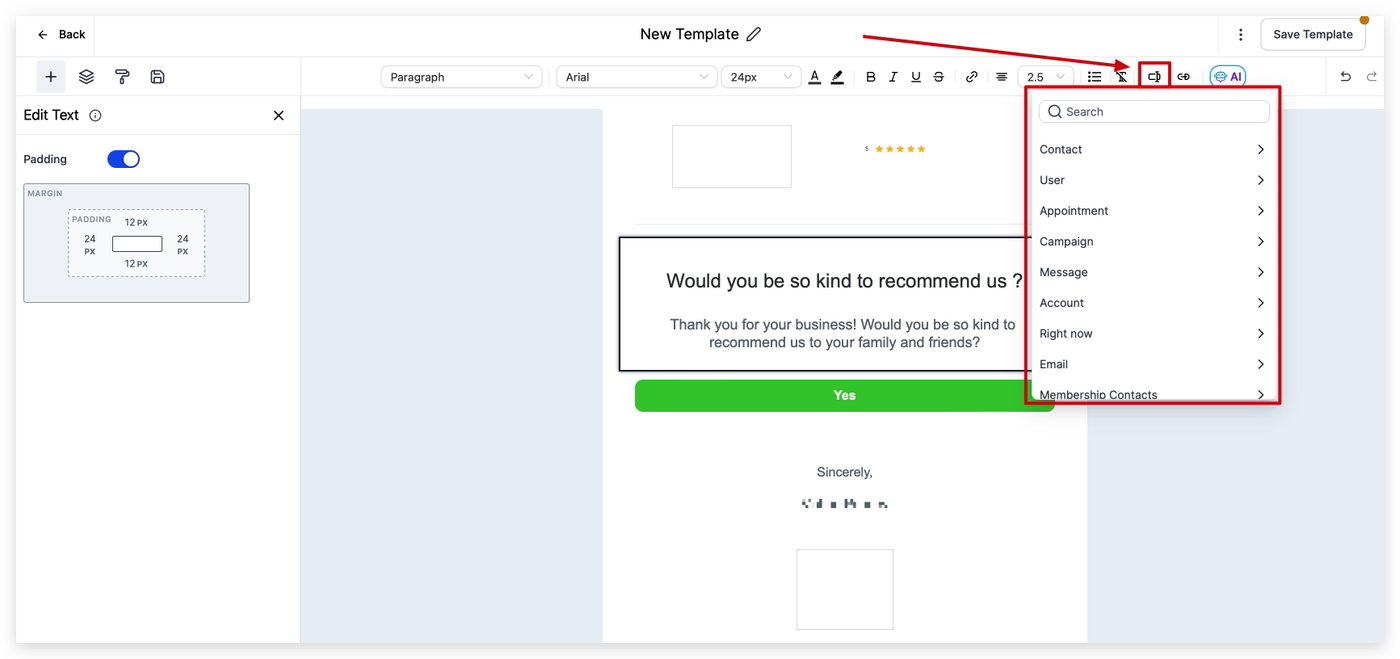
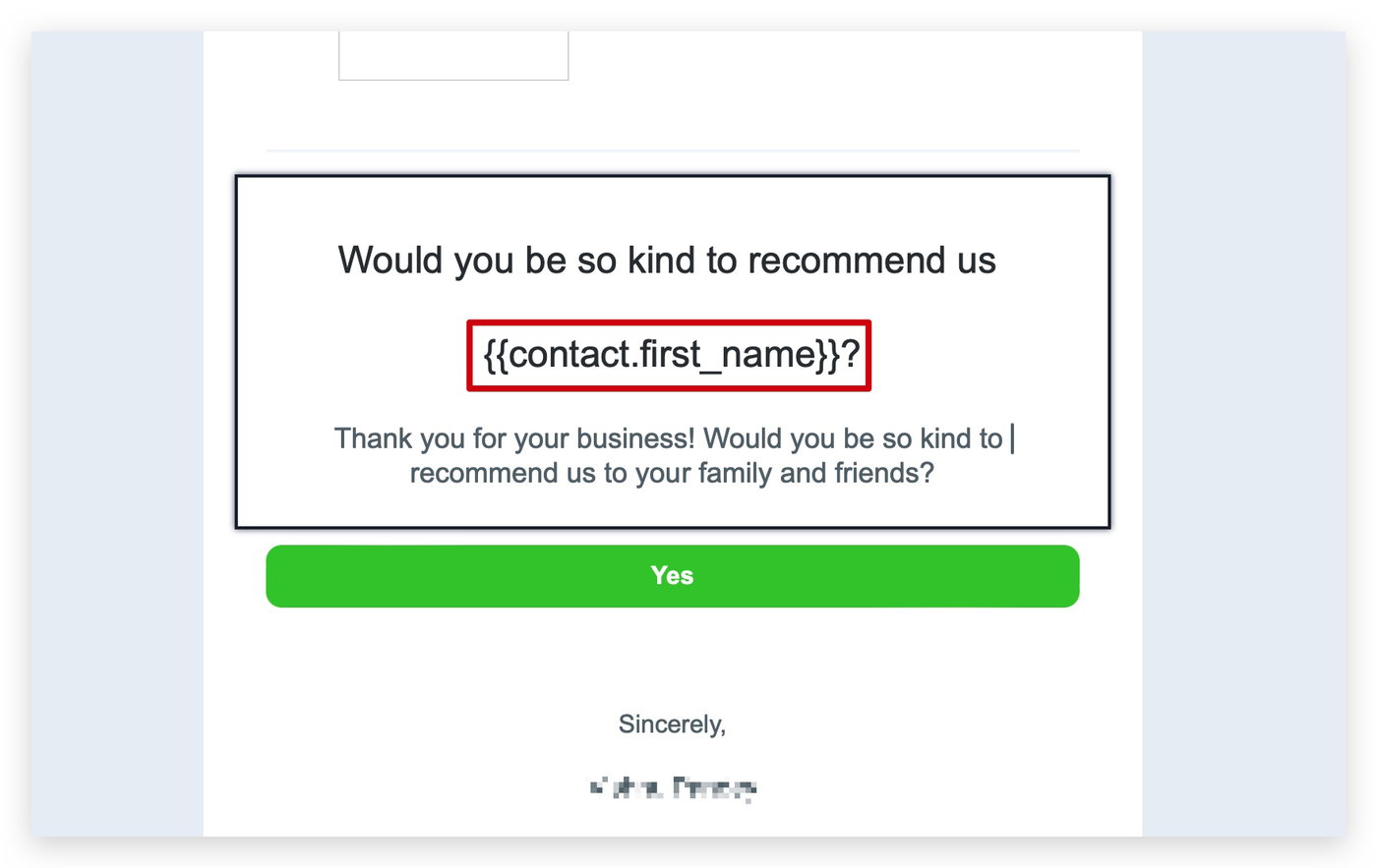
4. E-Mail Kampagnen & Templates
Custom Values können verwendet werden in:
E-Mail-Text
Betreffzeile
Absendername und -adresse
Beschreibungstext
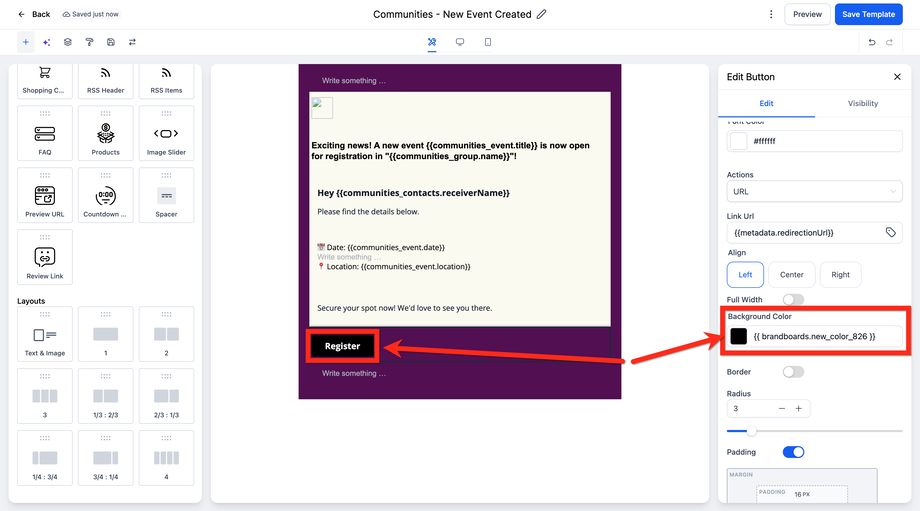
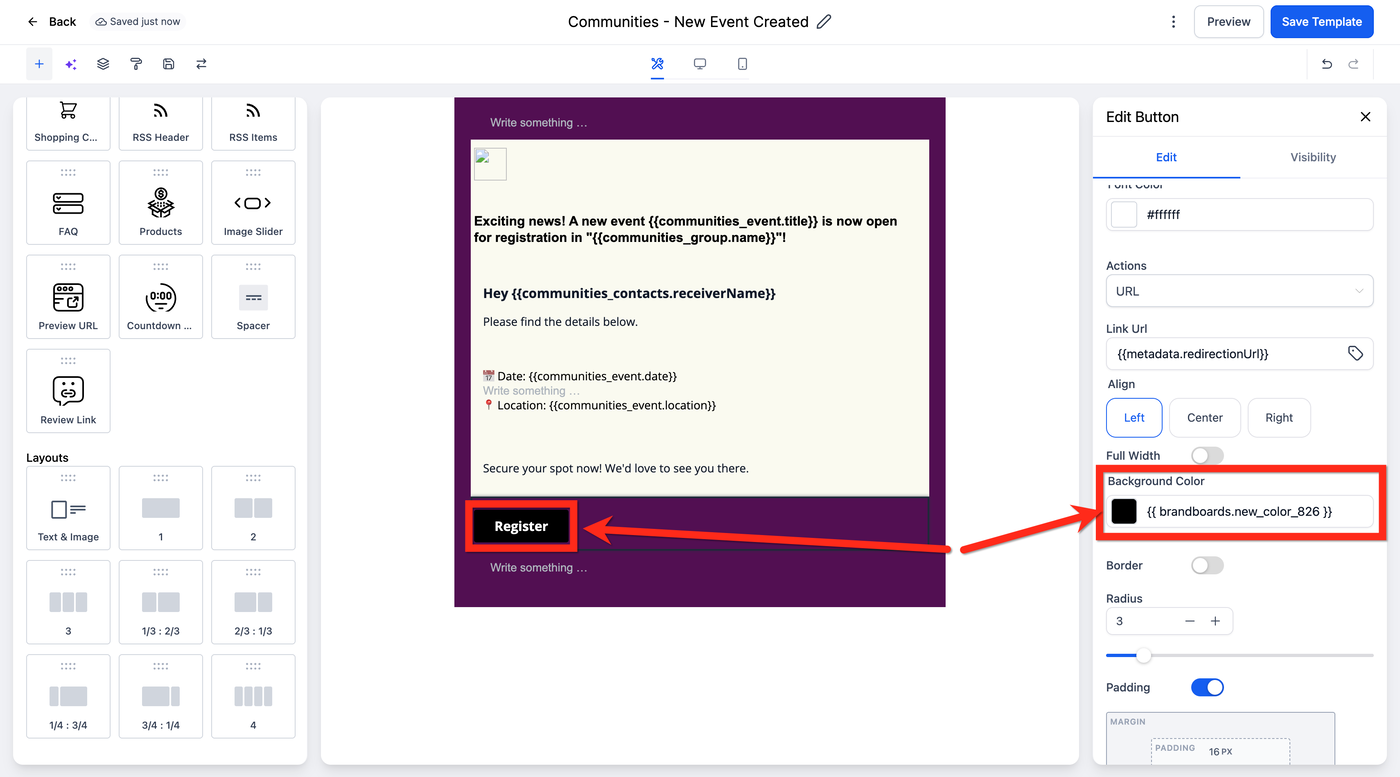
Auch Farbfelder (z. B. Background, Buttons) können dynamisch gesteuert werden.
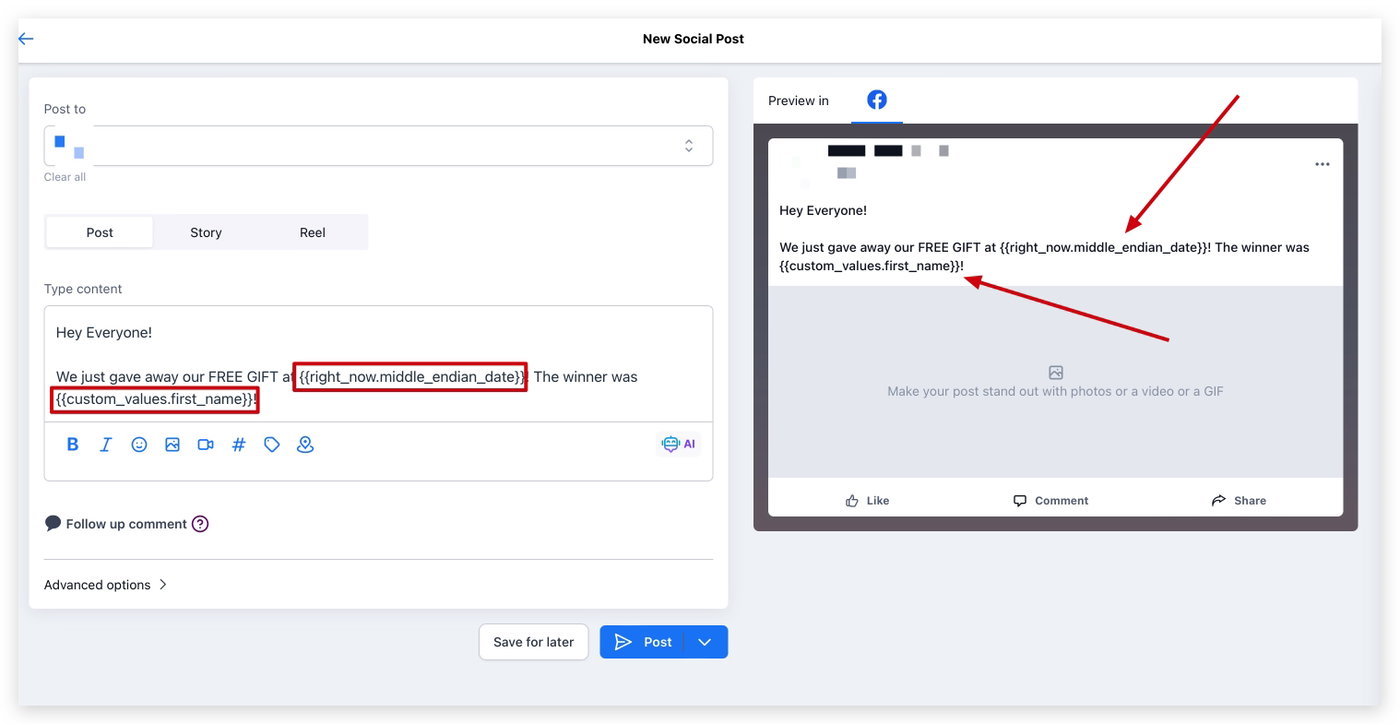
5. Social Planner
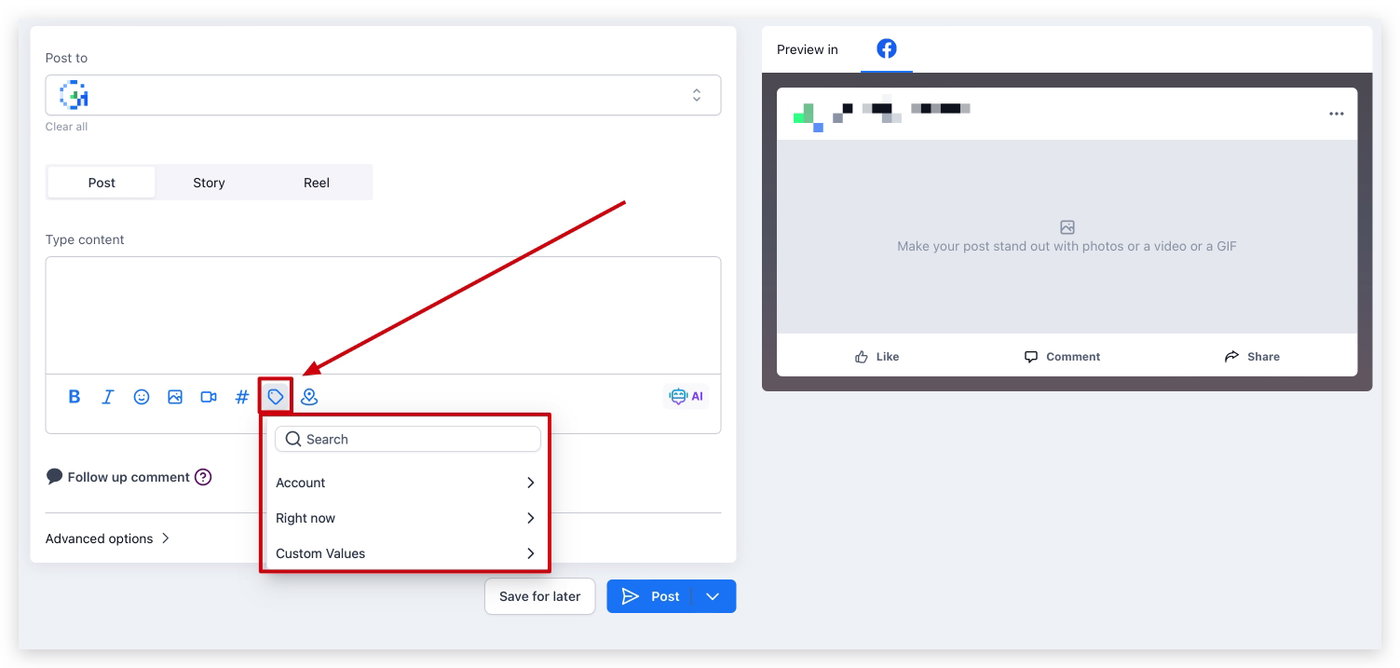
Custom Values können in Social-Media-Posts verwendet werden, um Inhalte schneller zu erstellen und zu personalisieren – unabhängig davon, wer den Post erstellt.
So organisierst du Custom Values in Ordnern
Unten findest du ein offizielles ProfitBoost-Video zu „How to Use Custom Value Folders“, das zeigt, wie du Custom Values besser strukturierst, während dein Account wächst.
Es gibt außerdem zusätzliche Tutorials aus der Community. Diese Inhalte wurden nicht vom ProfitBoost-Team erstellt.
Wenn du Fragen zu Custom Values oder Custom Value Folders hast, wende dich an den ProfitBoost Support oder die offizielle ProfitBoost Community auf Facebook.
Liste der Custom Values (Merge Tags)
In manchen Fällen benötigst du die Rohform von Custom Values, also ohne Klammern und Bindestriche. Das ist besonders nützlich z. B. bei internationalen Telefonnummern.
CONTACT:
Contact > Full name: {{contact.name}}
Contact > First name: {{contact.first_name}}
Contact > Last name: {{contact.last_name}}
Contact > Email: {{contact.email}}
Contact > Phone: {{contact.phone}} oder **{{contact.phone_raw}}
Contact > Phone (empfohlen für Trigger Links & UTM): Tel:{{contact.phone_raw}}
Contact > Company name: {{contact.company_name}}
Contact > Full Address: {{contact.full_address}}
Contact > Address 1: {{contact.address1}}
Contact > City: {{contact.city}}
Contact > State: {{contact.state}}
Contact > Postal Code: {{contact.postal_code}}
Contact > Time Zone: {{contact.timezone}}
Contact > Date of Birth: {{contact.date_of_birth}}
Contact > Source: {{contact.source}}
Contact > Website: {{contact.website}}
USER:
User > Full Name: {{user.name}}
User > First Name: {{user.first_name}}
User > Last Name: {{user.last_name}}
User > Email: {{user.email}}
User > Phone: {{user.phone}} oder {{user.phone_raw}}
User > Signature: {{user.email_signature}}
User > Calendar Link: {{user.calendar_link}}
User > Appointment Phone: {{appointment.user.phone_raw}}
User > Twilio Phone: {{user.twilio_phone_number}}
User > Twilio Phone (Rohformat): {{user.twilio_phone_number_raw}}
APPOINTMENT:
Appointment > Title: {{appointment.title}}
Appointment > Start Date Time: {{appointment.start_time}}
Appointment > Start Date: {{appointment.only_start_date}}
Appointment > Start Time: {{appointment.only_start_time}}
Appointment > End Date Time: {{appointment.end_time}}
Appointment > End Date: {{appointment.only_end_date}}
Appointment > End Time: {{appointment.only_end_time}}
Appointment > Day of the week: {{appointment.day_of_week}}
Appointment > Month name: {{appointment.month}}
Appointment > Timezone: {{appointment.timezone}}
Appointment > Cancellation Link: {{appointment.cancellation_link}}
Appointment > Reschedule Link: {{appointment.reschedule_link}}
Appointment > Meeting Location: {{appointment.meeting_location}}
Appointment > Notes: {{appointment.notes}}
Appointment > Add to Google Calendar: {{appointment.add_to_google_calendar}}
Appointment > Add to iCal & Outlook: {{appointment.add_to_ical_outlook}}
Appointment > Recurring > Repeats: {{appointment.recurring.repeats}}
Appointment > Recurring > Times to repeat: {{appointment.recurring.times_to_repeat}}
Appointment > Assigned user > Full Name: {{appointment.user.name}}
Appointment > Assigned user > First Name: {{appointment.user.first_name}}
Appointment > Assigned user > Last Name: {{appointment.user.last_name}}
Appointment > Assigned user > Email: {{appointment.user.email}}
Appointment > Assigned user > Phone: {{appointment.user.phone}}
Appointment > Assigned user > Phone (Rohformat): {{appointment.user.phone_raw}}
Appointment > Assigned user > Signature: {{appointment.user.email_signature}}
Appointment > Assigned user > Twilio Phone: {{appointment.user.twilio_phone_number}}
CALENDAR:
Calendar > Name: {{calendar.name}}
Campaign > Event, Date, Time: {{campaign.event_date_time}}
Campaign > Event Date: {{campaign.event_date}}
Campaign > Event Time: {{campaign.event_time}}
MESSAGE:
Message > Message Body: {{message.body}}
Message > Message Subject: {{message.subject}}
ACCOUNT:
Account > Name: {{location.name}}
Account > Full Address: {{location.full_address}}
Account > Address Line 1: {{location.address}}
Account > City: {{location.city}}
Account > State: {{location.state}}
Account > Country: {{location.country}}
Account > Postal Code: {{location.postal_code}}
Account > Email: {{location.email}}
Account > Phone: {{location.phone}}
Account > Phone (Rohformat): {{location.phone_raw}}
Account > Website: {{location.website}}
Account > Logo URL: {{location.logo_url}}
Account > Owner > First Name: {{location_owner.first_name}}
Account > Owner > Last Name: {{location_owner.last_name}}
Account > Owner > Email: {{location_owner.email}}
Account > ID: {{location.id}}
RIGHT NOW:
Right Now > Second: {{right_now.second}}
Right Now > Minute: {{right_now.minute}}
Right Now > Hour (24h): {{right_now.hour}}
Right Now > Hour (AM/PM): {{right_now.hour_ampm}}
Right Now > AM/PM: {{right_now.ampm}}
Right Now > Day of week: {{right_now.day_of_week}}
Right Now > Month name: {{right_now.month_name}}
Right Now > Day: {{right_now.day}}
Right Now > Month: {{right_now.month}}
Right Now > Month (English): {{right_now.month_english}}
Right Now > Year: {{right_now.year}}
Right Now > Date (MM/DD/YYYY): {{right_now.middle_endian_date}}
Right Now > Date (DD/MM/YYYY): {{right_now.little_endian_date}}
ATTRIBUTION:
Attribution > First > Session Source: {{contact.attributionSource.sessionSource}}
Attribution > First > URL: {{contact.attributionSource.url}}
Attribution > First > Campaign: {{contact.attributionSource.campaign}}
Attribution > First > UTM Source: {{contact.attributionSource.utmSource}}
Attribution > First > UTM Medium: {{contact.attributionSource.utmMedium}}
Attribution > First > UTM Content: {{contact.attributionSource.utmContent}}
Attribution > First > Referrer: {{contact.attributionSource.referrer}}
Attribution > First > Campaign ID: {{contact.attributionSource.campaignId}}
Attribution > First > FB Click ID: {{contact.attributionSource.fbclid}}
Attribution > First > Google Click ID: {{contact.attributionSource.gclid}}
Attribution > First > UTM Keyword: {{contact.attributionSource.utmKeyword}}
Attribution > First > UTM Match Type: {{contact.attributionSource.utmMatchType}}
Attribution > First > Ad Group ID: {{contact.attributionSource.adGroupId}}
Attribution > First > Ad ID: {{contact.attributionSource.adId}}
Attribution > Latest > Session Source: {{contact.lastAttributionSource.sessionSource}}
Attribution > Latest > URL: {{contact.lastAttributionSource.url}}
Attribution > Latest > Campaign: {{contact.lastAttributionSource.campaign}}
Attribution > Latest > UTM Source: {{contact.lastAttributionSource.utmSource}}
Attribution > Latest > UTM Medium: {{contact.lastAttributionSource.utmMedium}}
Attribution > Latest > UTM Content: {{contact.lastAttributionSource.utmContent}}
Attribution > Latest > Referrer: {{contact.lastAttributionSource.referrer}}
Attribution > Latest > Campaign ID: {{contact.lastAttributionSource.campaignId}}
Attribution > Latest > FB Click ID: {{contact.lastAttributionSource.fbclid}}
Attribution > Latest > Google Click ID: {{contact.lastAttributionSource.gclid}}
Attribution > Latest > UTM Campaign: {{contact.lastAttributionSource.utmCampaign}}
Attribution > Latest > UTM Keyword: {{contact.lastAttributionSource.utmKeyword}}
Attribution > Latest > UTM Match Type: {{contact.lastAttributionSource.utmMatchType}}
Attribution > Latest > Ad Group ID: {{contact.lastAttributionSource.adGroupId}}
Attribution > Latest > Ad ID: {{contact.lastAttributionSource.adId}}